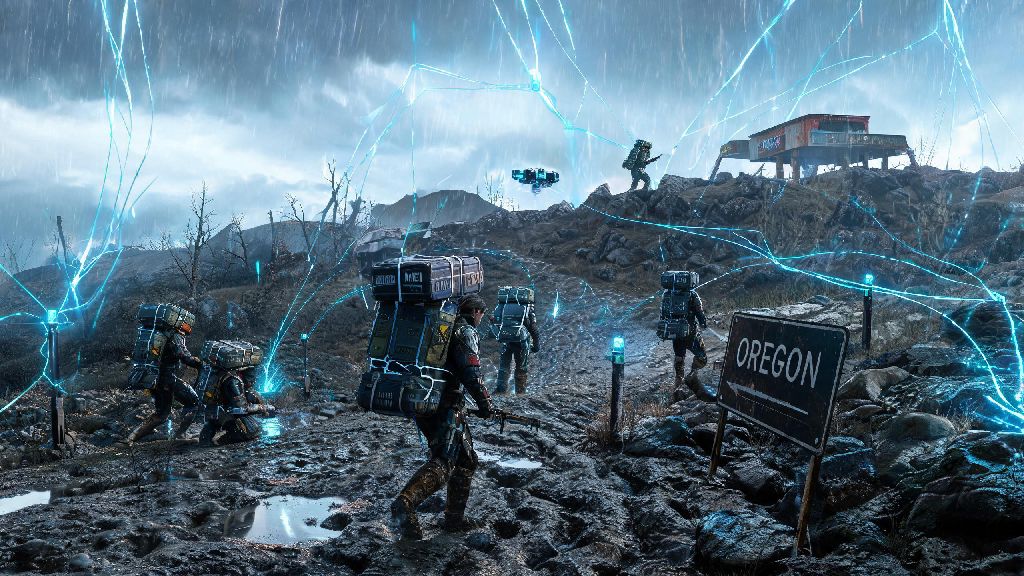
There’s nothing more frustrating than being 10 minutes into a high-priority medical delivery, weaving through rocky canyon paths on your reverse trike, only to have your entire screen smudge into an unrecognizable mess every time you make a sharp turn. For most players, that annoyance traces back to Death Stranding 2 motion blur, a visual setting that splits the fanbase straight down the middle. Some players swear by it for making the game’s vast open world feel more immersive and cinematic, while others write it off as an unnecessary feature that causes motion sickness and makes it hard to spot small cargo or hidden threats as you traverse the wasteland. This guide breaks down everything you need to know about adjusting, disabling, or fixing glitches related to this setting so you can tailor your gameplay experience to your preferences.
How Death Stranding 2 Motion Blur Works, and Why It’s So Polarizing
Kojima Productions built the game’s motion blur system to mimic the behavior of a real film camera, a choice that aligns with the studio’s signature cinematic design style. Unlike motion blur in many other open world games, it’s applied both to camera movement and the movement of objects around you, from drifting MULE trucks to BTs floating through timefall storms. On console, the default setting is tuned to hide small framerate drops during busy sequences, like when you’re surrounded by dozens of other players’ structures or crossing a dense forest during a storm. I first realized how aggressive the default setting was during my first run through the coastal region, when I almost drove off a 100-foot cliff because the blur from my trike’s movement hid the edge entirely until it was almost too late. Motion blur is far from a useless feature, though – it can make long traversal sequences feel far less jittery, especially if you’re playing on a 60Hz display, and it makes the game’s lengthy cutscenes feel almost indistinguishable from a big-budget film. The downsides are just as notable: it can cause significant eye strain during 3+ hour play sessions, it makes it harder to spot small chiral crystals or lost cargo along the side of the road, and it can trigger motion sickness for players who are already sensitive to fast-moving visuals.
Step-by-Step Guide to Adjusting Motion Blur Settings
You can find all motion blur related settings under the Visual tab on PS5 and Xbox Series X/S, or the Graphics tab on PC, right below the framerate limit and resolution scaling options. The game splits the setting into three separate toggles and sliders, so you don’t have to choose between full blur or no blur at all. Each option controls a different part of the effect, so you can tweak them to match your play style:
- Global Motion Blur Strength: This slider controls the overall intensity of all motion blur effects in both gameplay and cutscenes. Most casual players find a value between 20% and 40% strikes the best balance between cinematic feel and visual clarity during regular traversal.
- Camera Motion Blur: This separate slider only affects blur caused by moving your in-game camera, not the movement of your character or vehicles. Disabling this entirely is a great call if you often pan the camera around to scout for resources, hidden prepper shelters, or incoming BT threats.
- Object Motion Blur: This setting controls blur for all moving objects on screen, from passing MULE vehicles to floating chiral networks left by other players. Keep this on low if you want to retain the cinematic feel of fast movement without losing clarity of fast-moving threats during combat or escape sequences.
If you’re playing on PC, you’ll also find a toggle for motion blur sharpening, which can help reduce the smudged look of lower blur strengths without turning the effect off entirely. Always test your new settings for 10 to 15 minutes of active gameplay after adjusting them – what looks sharp and comfortable in the static main menu might feel too blurry or too jittery when you’re actually driving across muddy terrain or gliding through a mountain pass. If you struggle with motion sickness even at low blur strengths, you can turn on the "reduced motion effects" toggle in the accessibility menu, which automatically cuts all motion blur intensity in half and disables it entirely during fast traversal sequences.
Common Death Stranding 2 Motion Blur Glitches and Fixes
Even if you have your settings perfectly tuned, you might run into occasional glitches that make motion blur feel way more intense than it should be, or keep it enabled even after you’ve turned the setting off. The most common glitch players report is motion blur sticking on permanently after a long cutscene or a fast travel jump, even if the slider is set to 0% in the menu. Fixing this is simple: just toggle the motion blur slider up to 100% then back to 0% again, then reload your last save to reset the effect entirely. If that doesn’t work, a quick game restart will almost always clear the glitch. Another common issue is motion blur being far too intense when using the new glider traversal tool, even at low global strength settings. This happens because the glider’s fast movement triggers extra object motion blur for the terrain passing below you, so you can fix it by lowering the object motion blur slider specifically, rather than turning off the entire effect. PC players with Nvidia or AMD GPUs should make sure they have the latest game-ready drivers installed – many early access players reported motion blur bugs that were fixed in official driver updates released within the first two weeks of the game’s launch. If you’re playing on a 120Hz or 144Hz display, don’t be surprised if motion blur feels more pronounced than it does on a 60Hz screen; this isn’t a glitch, just a side effect of the faster refresh rate, and you can fix it by lowering the global strength slider by 10 to 20% to compensate.
Should You Keep Motion Blur Enabled for Death Stranding 2?
There’s no universal right answer for this question, it all depends on what you’re playing the game for and what kind of experience you prefer. If you’re playing first and foremost for the story, and you prioritize the game’s cinematic tone over competitive performance, keeping motion blur enabled at 30 to 50% strength will make the experience feel far more immersive. Cutscenes will feel more like a Kojima-directed film, and long drives across the open world will feel smoother, even if you’re running the game on slightly older hardware that dips below 60fps every now and then. If you’re a completionist who’s trying to collect every chiral crystal, deliver every piece of lost cargo, and beat the game on hard difficulty, you’re almost certainly better off turning motion blur off entirely, or setting it to below 20%. Without the blur smudging your screen, you’ll be able to spot small resources and hidden threats much faster, and you’ll have more time to react to MULE ambushes or sudden BT appearances. Players who stream or record gameplay should also usually turn motion blur off – compressed video streams make blur look far worse than it does on your local screen, and your viewers will have a much clearer, more enjoyable viewing experience if the effect is disabled. I personally keep mine set to 25% for casual story playthroughs on my PS5, but turn it off entirely when I’m doing speedrun attempts or trying to beat the game’s hardest boss fights. The difference in reaction time is noticeable, even if you don’t consider yourself a highly competitive player.
At the end of the day, the best setting for Death Stranding 2 motion blur is whatever feels most comfortable for you. You don’t have to stick to one setting forever, either – you can turn it up for a relaxed story playthrough focused on cutscenes and world exploration, then turn it down when you’re taking on high-stakes delivery missions that require fast reactions and clear visibility. Taking a few minutes to tweak these settings to match your play style and hardware will make a huge difference in how much you enjoy your time exploring the game’s vast, beautiful post-apocalyptic world, and it’ll help you avoid the frustration of missing a cliff edge or a piece of rare cargo because your screen was smudged with unnecessary blur.